
Read this before your Canadian citizenship test, and avoid a rejected result
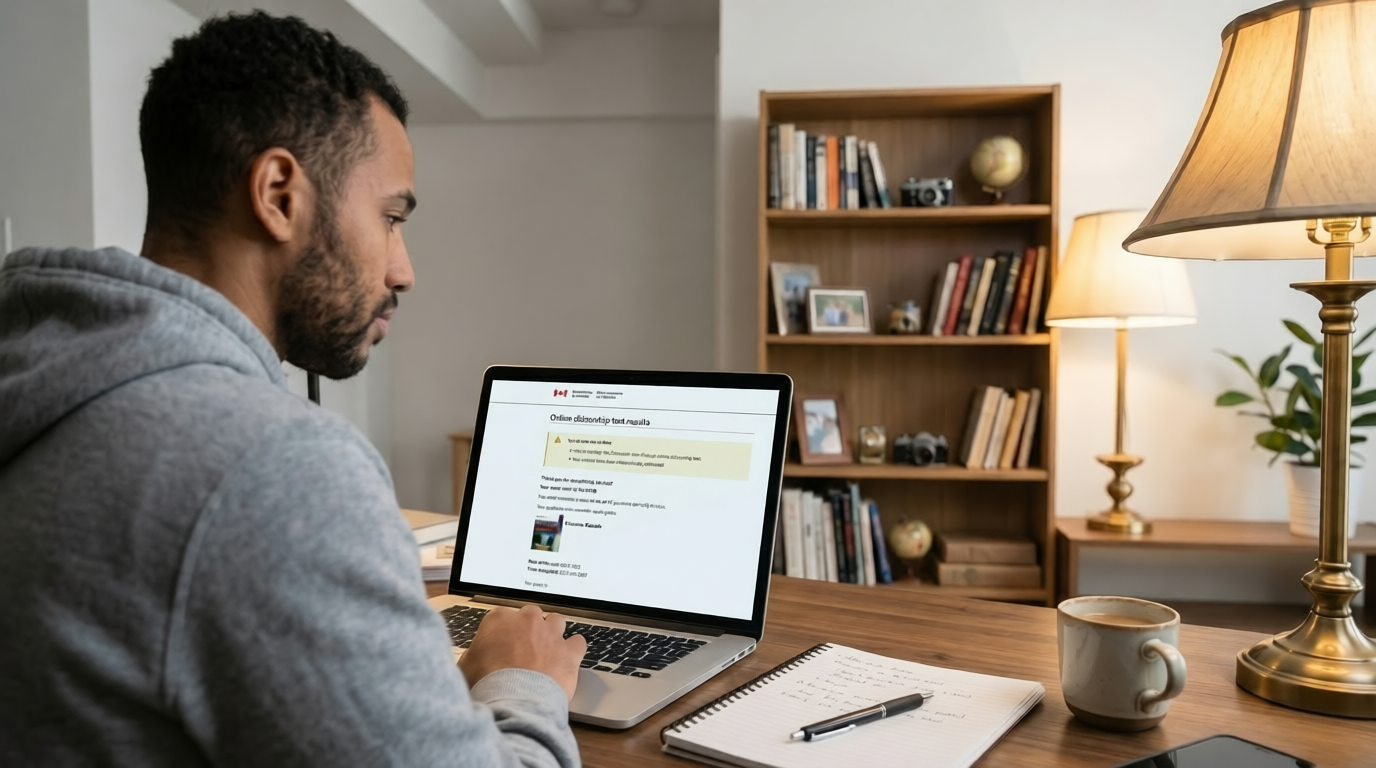
Most people don't fail the online Canadian citizenship test on the questions. They stumble on the setup: a webcam that quits, a blurry ID photo, an app left running. Here's what actually matters, so you don't repeat the mistakes others learned the hard way.
These insights come from the real experiences of people who recently took the online test, combined with IRCC's official rules. The aim is to settle the contradictions you'll find in online groups with answers you can rely on.
Read this first
The score you see on screen is temporary
When you submit the online test, the score that appears is an unofficial result. An officer then reviews your session, including your webcam photos, before it becomes official. That review takes a few days to a few weeks.
This single fact explains nearly every worry people have afterward. The on-screen number isn't the final word, so a clean session matters as much as a passing score. Here's how you'll know you're actually through:
How the monitoring worksWhat the webcam is actually doing
People picture a live video feed with someone watching every move. It isn't that. IRCC uses your webcam to take random still photos during the test, to confirm it's you and that you're alone. Before you start, you use it twice more: one photo of your face, one of your ID.
So a few things people panic about simply aren't recorded: there's no audio, no continuous video to scrub through, and no record button you could have forgotten to press. It's automatic. What the photos need to show is simple, and it's the standard everything else on this page comes back to:
Your photos must be clear and readable, your face visible in the frame, and no one else present. Measure every "did I mess up?" question against that.
Here's what the test screen looks like. Your live camera sits in a small window in the corner, it can be easy to ignore, and that's fine. The thing to notice is where a real warning would show up:
Before you startThe two photos, and your only chance to fix them
The identity step happens fast and feels permanent. It mostly isn't, if you act at the right moment. The fix is one button: if a photo looks blurry, dark, or wrong, hit Retake before you approve it.
Already approved a bad one? It comes down to timing. If you haven't started the test, wait about 15 minutes for the link to expire, sign in again with your application number and UCI, request a new link, and retake. Once the test has started, you can't redo the photo, email the address in your invitation and let the review handle it. And the common one, accidentally taking a photo of your face where the ID should go: IRCC says you don't need to contact them. They'll review it and tell you the next step.
The window and the linkA few things to know before test day
Some of the avoidable trouble happens before the webcam is ever switched on:
Setup checklistWhat to do before you click start
Nearly every rejected test traces back to setup, not knowledge. Run this before you click start. Tap each item as you go.
During the testDo this, not that
✓Do
- Stay in front of the camera the whole time
- Take your time, you have 45 minutes for 20 questions
- Use the grid view to check for unanswered questions
- Save or email yourself the results page when you finish
✕Don't
- Get up or leave the camera's view
- Use the browser's back button (it warns you're leaving)
- Open notes, other sites, or a second device
- Rush, over-review, and risk a disconnect for no reason
IRCC sends no confirmation and there's no way to view your score again later. The buttons on the results page to print or email it to yourself are your only copy, use them.
If the camera quitsWhat to do if you get disconnected
A black screen or a "camera not working" message is the scariest moment, and the one people handle wrong. The key thing to know: the 45-minute timer keeps running while you're disconnected. Move quickly, in this order.
Sign in again and request a new link if the old one expired.
The system saved your answers. Complete the test and let the officer review run.
Include your application number and UCI. You have 30 days from your invitation date to contact them.
IRCC sends a new invitation with next steps. Rescheduling usually takes 4 to 8 weeks. So don't keep hammering a dead link, and don't panic-email on day one, the review-and-reinvite process is built for exactly this.
Common worries"Did I mess up?" the questions people ask most
These all come up constantly. None has a special rule of its own, so each one gets measured against the same standard: clear, visible, alone. Tap to open.
The background tabMy email tab with my UCI was open the whole time
The notificationEmail and message notifications popped up on my laptop
The flickering lightThe room light cut out for a few seconds, then came back
The corner cameraThe camera window was tiny in the corner and I barely looked at it
The second monitorI used two monitors, so my eyes pointed off to the side
The Mac popupA separate camera window covered my timer, so I moved it
The permission buttonI clicked "Allow once" instead of "Always allow" for the camera
At a glanceThe test by the numbers
Every question comes from Discover Canada, the only official study guide. The test is taken online from home by default; in-person and Microsoft Teams formats exist for accommodations or at an officer's discretion.
SourcesCheck it against the official rules
Everything here is grounded in IRCC's own published guidance. When in doubt, your test invitation always takes precedence, but these are the primary references:
- IRCC, Take the online test · devices, webcam, photo and disconnection rules
- IRCC, Test results and next steps · unofficial vs official results, invalidated tests
- IRCC, How the test works · format, attempts and who has to take it